
 Get GemX
Click Allow on the popup that appears to start the download automatically. If the popup doesn't appear, click the download button below to download and install manually.
Download GemX for MacSteps to launch
GemX is installed directly rather than through the App Store, so macOS asks you to confirm the first launch. Here's exactly what to expect, screenshotted step by step.
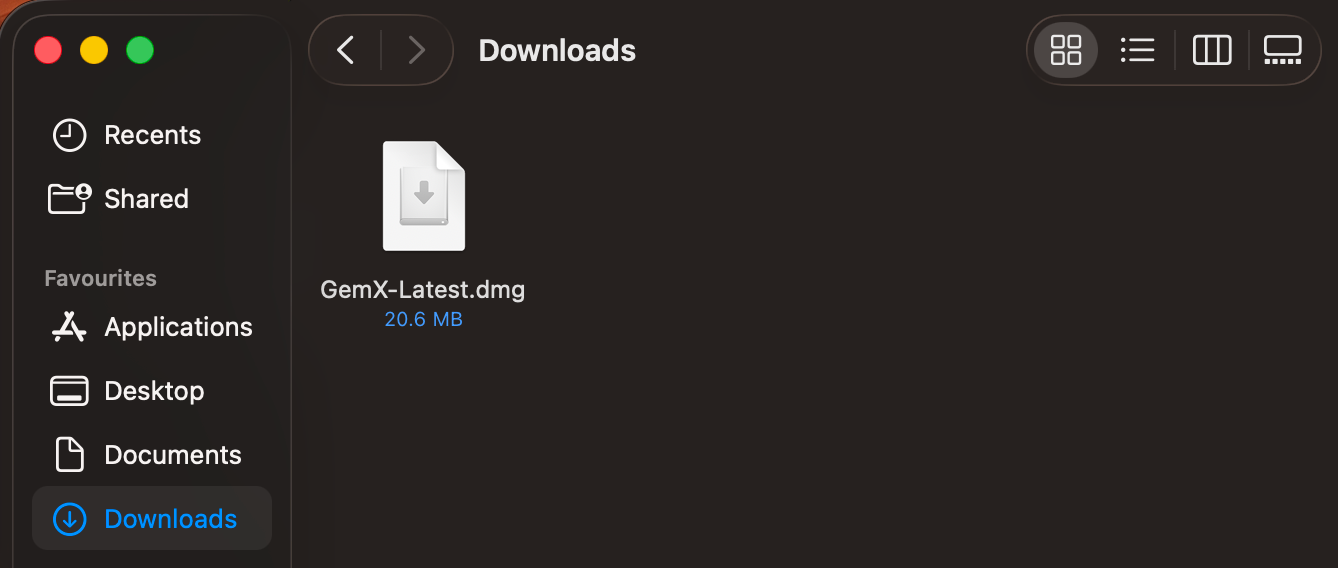 01
01Download the .dmg
Once the download finishes, you'll find the GemX .dmg file (about 21 MB) in your Mac's Downloads folder.
 02
02Install GemX
Open Finder, go to Downloads, and double-click the .dmg to open it. Drag the GemX icon onto the Applications folder to install it.
 03
03Open GemX from Applications
Since GemX is downloaded directly rather than through the App Store, macOS blocks the very first launch and shows this message. That's expected — click Done to dismiss it.
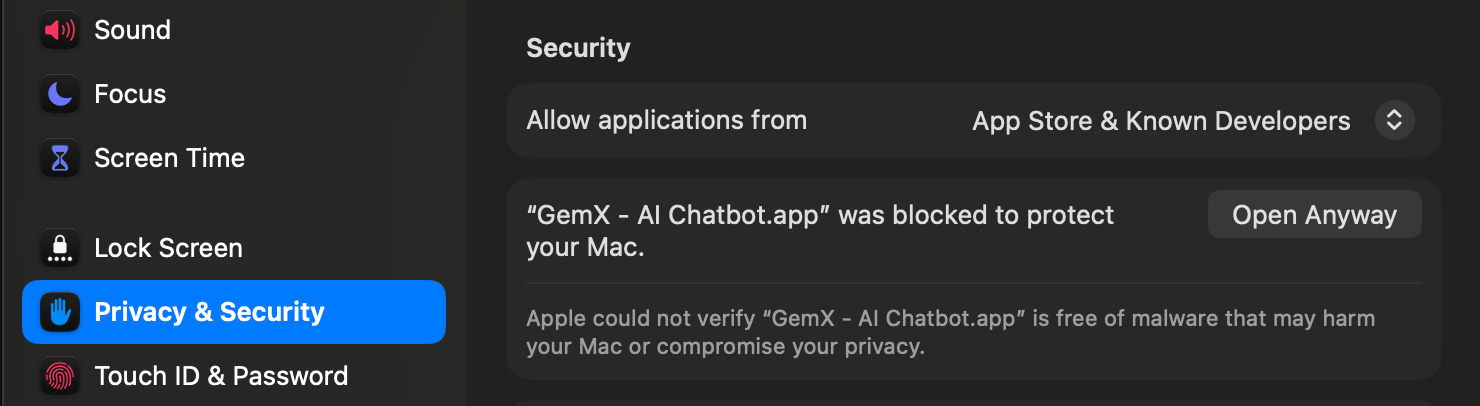 04
04Allow it in System Settings
Open System Settings → Privacy & Security, scroll to the Security section, and click Open Anyway next to GemX. Confirm once with your password or Touch ID — after that, GemX opens normally every time.
That's it — welcome to GemX.
Sign in once GemX opens and every Gemini model and tool is ready to go, right from your Mac.
Download GemX for MacStill have questions?
Tell us how we can help.